
Accessibility Checklist for animated content
Thinking of including some animation on your website, like videos, GIFs or CSS animations? Animations can enhance user engagement; however, there are a few things to remember to make sure they are accessible for everyone. Follow this checklist to ensure your animated content meets accessibility standards:
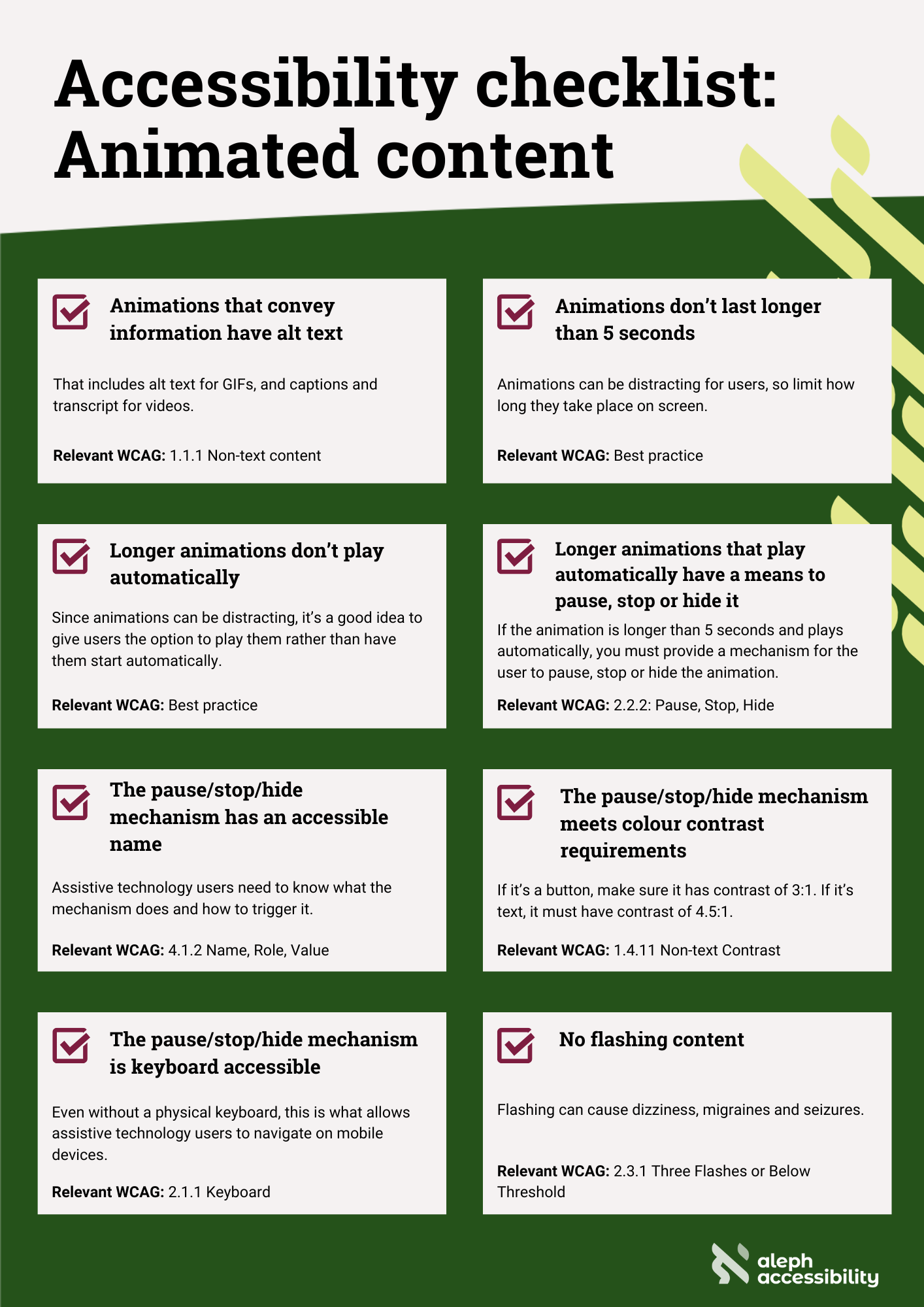
- Animations that convey information have alt text. That includes alt text for GIFs, and captions and transcript for videos. Relevant WCAG: 1.1.1 Non-text content
- Animations don’t last longer than 5 seconds. Animations can be distracting for users, so limit how long they take place on screen. Relevant WCAG: Best practice
- Longer animations don’t play automatically. Since animations can be distracting, it’s a good idea to give users the option to play them rather than have them start automatically. Relevant WCAG: Best practice
- Longer animations that play automatically have a means to pause, stop or hide it. If the animation is longer than 5 seconds and plays automatically, you must provide a mechanism for the user to pause, stop or hide the animation. Relevant WCAG: 2.2.2: Pause, Stop, Hide
- The pause/stop/hide mechanism has an accessible name. Assistive technology users need to know what the mechanism does and how to trigger it. Relevant WCAG: 4.1.2 Name, Role, Value
- The pause/stop/hide mechanism meets colour contrast requirements. If it’s a button, make sure it has contrast of 3:1. If it’s text, it must have contrast of 4.5:1. Relevant WCAG: 1.4.11 Non-text Contrast
- The pause/stop/hide mechanism is keyboard accessible. Even without a physical keyboard, this is what allows assistive technology users to navigate on mobile devices. Relevant WCAG: 2.1.1 Keyboard
- No flashing content. Flashing can cause dizziness, migraines and seizures. Relevant WCAG: 2.3.1 Three Flashes or Below Threshold
Aleph Accessibility helps organisations make clearer, more confident accessibility decisions across design, delivery and procurement.
If you want to make accessibility part of the way you work, you can learn more about our audits, consulting and training, or get in touch for a short, no-obligation conversation.